A brief overview of Nintendo 3DS software authentication

The Nintendo 3DS, like every modern console, attempts to prevent the use of software that was not authorized by its manufacturer. This post will attempt to answer two questions:

  • Why you can’t install unsigned software without custom firmware
  • Why you can’t create custom game cards

The 3DS uses RSA to verify the authenticity of software. Nintendo signs software with a private key, and under normal circumstances, the 3DS will only execute software that can be verified with a public key.

Game card images (i.e. .3ds/CCI) contain signatures that are only valid to game cards. Digital software releases (i.e. CIA) contain signatures that are only valid to digital software.

Digital software that comes from Nintendo eShop come with a ticket that is signed for the particular console it’s for. This ticket can’t be installed to a different console.1

Flashcarts like Sky3DS / Sky3DS+ / Stargate will emulate a game card in a way that the 3DS accepts. And if an original, unmodified game card image is presented, this game can be played without any system modifications. However they cannot forge the signature, as the 3DS operating system will still verify that it’s valid. Any attempts to modify the data or create custom titles will fail this signature check.

As game cards and digital software have their own signatures, any attempt to “convert” a digital game to a game card image and vice versa will result in a title with a signature that does not validate against Nintendo’s public key.

Since we do not have Nintendo’s top secret and confidential retail signing keys, we cannot run software on the 3DS without exploiting holes in existing software. The relevant private keys have not appeared in any leaks.

The closest equivalent to a private key leakage for a game console was the PlayStation 3, however this was mainly due to Sony failing to do the math right.

  1. There’s an exception for software that comes pre-installed, tickets for these are signed for all consoles. ↩︎
Notes on playing Super Paper Mario with a standard controller

I recently finished playing Super Paper Mario (for probably the sixth time), and I did so across my Steam Deck and my PC with an Xbox controller. Since this is a Wii game that depended on Wii Remote motion features, making it work on the common gamepad is non-trivial. Specifically, these need workarounds:

  • Pointing at the screen for Tippi’s tattle, the minigames Forget Me Not and Mansion Patrol, and some items like Ghost Shroom
  • Horizontal remote shaking for Stylish moves, recovering from sleeping or being frozen, a thing in the Chapter 3 boss fight, and some items like Fire Burst
  • Vertical remote shaking for some items like Mighty Tonic
  • Tilting for the Tilt Island minigame, and some items like Long-Last Shake
  • Swinging for the minigame Hammer Whacker

Thankfully, it’s much easier today to play most of the game with a standard controller by using a hack to add Classic Controller compatibility. This was done by GBAtemp user Vague Rant. The post with Gecko codes and button binding is available here.

Unfortunately, as of March 2025, this hack does not cover motion-related features. The pointer is implemented as a button toggle and uses the joysticks, but items and minigames that require shaking, tilting, and swinging, still require the use of a real Wii Remote. Through an emulator, however, it’s possible to bind these actions to buttons and joystick.

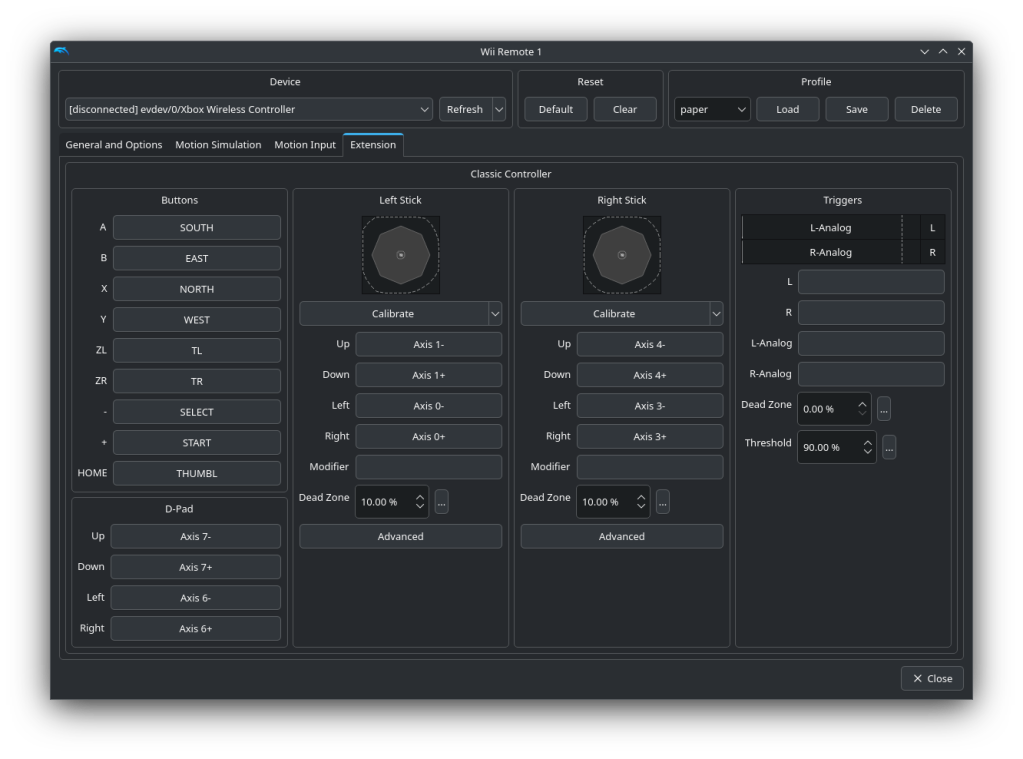
In my case, I decided to bind ZL to horizontal shake (Z axis), ZR to vertical shake (Y axis), and right stick to tilting. Tilt binds should be “rotated”; that is, forward tilting should actually be pushing the right stick left, and left tilting is pushing down. (I don’t know if the “Sideways Wii Remote” affects tilt binds.) Horizontal shake works well to fill meters, but seems not perfectly reliable for Stylish moves.

On the Classic Controller pairing, make sure to remove the binds for the L and R buttons (which confusingly will be bound to the Xbox controller’s ZL/ZR buttons), so it doesn’t conflict with the shake motion binds. L and R refers to the triggers on the right side of the window, not ZL and ZR non-analog buttons, nor the Xbox controller’s L and R non-analog buttons.

Dolphin controller configuration screen for a Wii Remote. The "Extension" tab is visible and shows configuration for the Classic Controller extension.
Dolphin controller configuration for the Classic Controller.

As for swinging, it only seems to be used for the Hammer Whacker minigame as far as I know. I decided to bind forward swing to the Xbox controller’s R button. Even though it overlaps with the Classic Controller’s ZR button, the swing action shouldn’t affect anything else. In my testing, the swing action works pretty reliably for the minigame, never missing any shots.

While it’s possible to instead bind motion features to the gyroscope of a compatible controller (such as the Steam Deck or PlayStation controllers), I decided to go for a motion-less setup for compatibility with Xbox controllers.

Make sure to save the controller layout and have it automatically load. That is, put in the GameINI:

[Controls]
WiimoteProfile1 = YourLayoutName